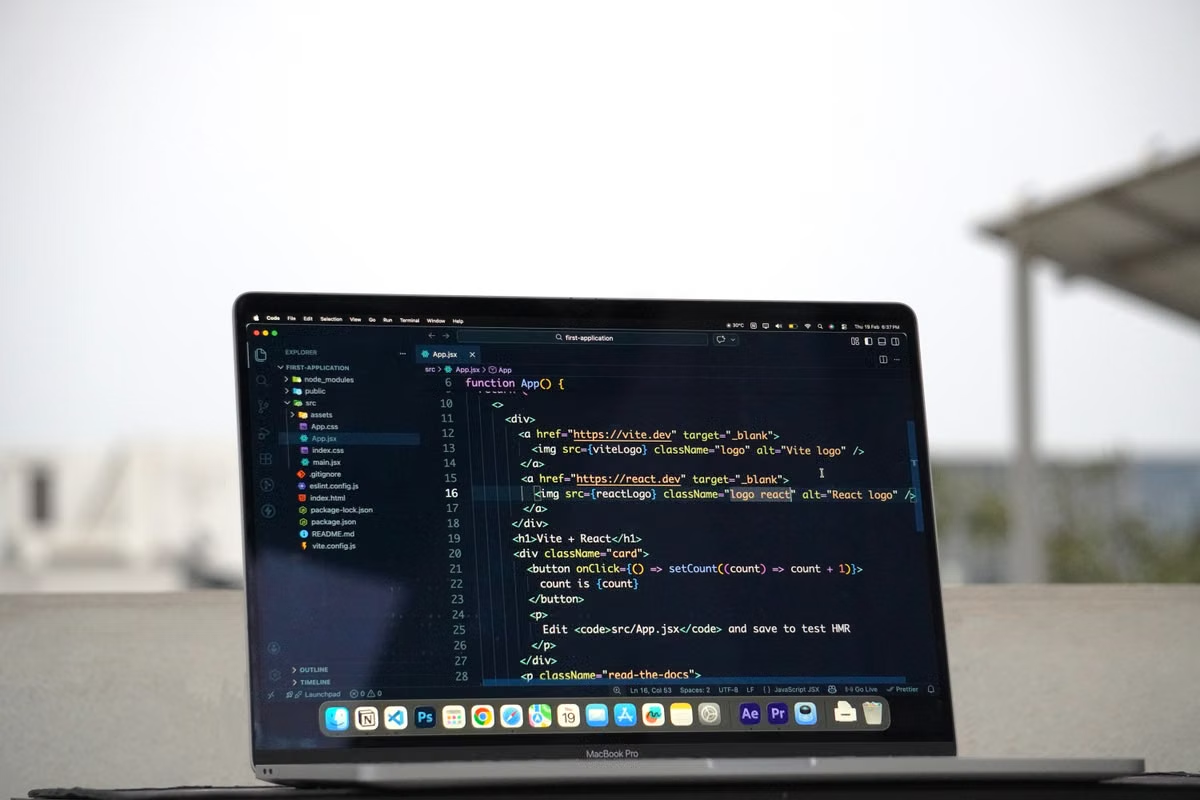
Your tablet or lightweight laptop can open the repository, but you are not sure whether the project can be built and tested without macOS.
This week, test one real task from your project: use GitHub Codespaces for Linux-compatible work, use a Mac environment for steps that need Xcode or macOS-native tools, and combine them when both kinds of work are part of delivery.
This guide is for digital nomads building web or backend projects who want to know whether Codespaces can cover their daily workflow.
It also helps independent Apple-platform developers identify where a Mac is needed, and freelancers decide whether client work calls for one environment or two.
The project type sets the boundary
GitHub Codespaces vs. a cloud Mac is not a choice between two equivalent remote desktops. Codespaces provides a development environment built around a Linux virtual machine and a development container. A cloud Mac provides a macOS working environment. The distinction matters most at build, test, and delivery time—not simply when you open a code editor.
Start with the project’s required build and test steps. If the full workflow runs in a Linux-compatible environment and you can use a browser or supported editor, Codespaces can be your primary workspace. If you need Xcode, an Apple platform simulator, or a macOS-native tool, schedule those steps on a Mac. If your project includes both, divide the work instead of forcing one environment to cover everything.
| Project profile | Codespaces fit | Cloud Mac fit | Recommended approach |
|---|---|---|---|
| Web application with a Linux-compatible runtime | Strong when dependencies, tests, and local services work in the configured container | Useful only if a separate macOS-specific task exists | Start with Codespaces; test the actual repository setup |
| Backend service with containerized dependencies | Strong when the container and service workflow match the project | Not usually required for Linux-based development alone | Keep development and routine tests in Codespaces |
| Apple-platform application | Useful for code review or compatible editing tasks, but it is not a macOS environment | Needed for Xcode-dependent build, simulator, or native-tool steps | Use a Mac for platform validation; verify each build route |
| Cross-platform product with an Apple client and web services | Suitable for shared code and Linux-compatible services | Suitable for macOS-specific validation and tools | Split work by task, then check handoffs |
| Client project with a prescribed toolchain | Depends on client-approved access, accounts, and environment | Depends on the client’s macOS requirements and data rules | Get written agreement on the environment and acceptance process |
GitHub describes Codespaces as a cloud-hosted development environment using a virtual machine and a dev container. Its Codespaces architecture documentation and dev container overview are the right references when you need to check what runs in the workspace. That is a different starting point from a macOS machine.
A workspace that opens successfully is not proof that the delivery workflow is portable. A project may edit cleanly while failing at a platform-specific build, signing, simulator, or native-tool step. Treat each of those as a separate compatibility question.
Web and backend work in Codespaces
For a web or backend developer traveling with an iPad or lightweight laptop, the decision is usually practical: can the project’s documented development and test workflow run in its Codespaces environment? If yes, you can keep everyday coding there and avoid bringing in a Mac solely for Linux-compatible tasks.
Can you use GitHub Codespaces for a project without a Mac? Yes, when the project’s required runtime, dependencies, tests, and development services work in the Codespaces setup, and none of the required delivery steps depends on macOS. Check the repository’s actual configuration rather than assuming that a browser-based editor makes every project portable.
GitHub’s setup documentation explains how a repository can be prepared for Codespaces. Use the Codespaces setup guide to inspect the project’s development configuration, then verify the pieces that often cause travel-day surprises:
- Runtime versions and package-manager behavior.
- System libraries or command-line tools installed outside the project’s package manager.
- Services that need to run alongside the application, such as a database or local API.
- Environment variables, credentials, and secret-handling rules.
- Tests that depend on a particular operating system, architecture, or locally available service.
- Port forwarding for a browser-visible development server.
Port forwarding has a security dimension as well as a convenience dimension. GitHub documents forwarding a Codespaces port and controlling whether it is private or accessible more broadly. Check the port forwarding documentation before sharing a preview link, especially when the project contains non-public work.
| What to validate | Evidence to check | Decision signal |
|---|---|---|
| Runtime and dependencies | Development container configuration, setup scripts, lockfiles | Codespaces is viable if a clean workspace installs and runs the project as expected |
| Tests and local services | Test commands, service definitions, CI workflow | Keep routine checks there if they match the project’s accepted test process |
| Browser preview | Application port and access visibility | Use port forwarding only with an access setting appropriate to the preview |
| Secrets and client data | Repository policy, account permissions, approved secret handling | Stop and confirm with the client if the policy is unclear |
Codespaces supports different ways to work in a codespace, including browser-based and editor-oriented workflows described in GitHub’s development guide. For a traveler, that flexibility helps when the available device changes. It does not remove the need to check whether the project’s tools, input methods, and test services are usable on that device.
Cost also needs a project-specific check. Do not compare a subscription or compute charge in isolation: include the time spent configuring the container, any separate service costs, and the cost of keeping an approved test route available.
| Cost or effort item | Codespaces question | Cloud Mac question |
|---|---|---|
| Workspace usage | What charges apply to the selected Codespaces setup and usage? | What rental period and access terms are available for the Mac environment? |
| Setup and upkeep | Can the repository configuration be reused reliably? | Does the project need a persistent macOS setup or only occasional access? |
| Supporting services | Are databases, previews, or external services billed separately? | Are required accounts, storage, and connected services handled separately? |
| Travel reliability | What happens when hotel or café internet interrupts the session? | Can you reconnect to the same working environment, and under what service terms? |
| Client approval | Does the client permit the hosting and secret-handling arrangement? | Does the client approve remote access to the Mac environment and project data? |
The price table is a checklist of cost categories, not a price quote. Confirm current terms directly before choosing a plan. For a broader comparison of remote Mac use cases, see the remote Mac guides.
Apple-platform work and Xcode
If the work includes building, running, or debugging an Apple-platform app, distinguish editing source code from validating the app in its target environment. You may be able to review files or make compatible edits from a browser-based workspace. That does not make Codespaces a macOS machine or establish that a particular Apple build step is supported there.
Can GitHub Codespaces develop an iOS app? It can be part of an iOS project’s workflow for tasks that are compatible with its environment, such as some repository edits or shared backend work. For Xcode-dependent builds, simulator runs, and macOS-native tooling, use a Mac environment unless the exact alternative route is confirmed by official documentation and your project’s requirements.
Apple’s Xcode documentation describes Xcode as the toolset for developing Apple-platform software. Apple also publishes Xcode system requirements, which you should check against the version and platform requirements of the project you are maintaining. These are the relevant checks; do not infer that a Linux container can perform a macOS-only step just because the source code is stored in the same repository.
| Apple-project task | Environment decision |
|---|---|
| Read source, review a pull request, or edit shared code | Use the environment and editor that fit the task, provided project policy allows it |
| Run a web service or backend that supports Linux | Codespaces can be suitable if dependencies and tests pass there |
| Build or debug through Xcode | Plan for a Mac environment and verify the required Xcode setup |
| Test with an Apple platform simulator | Check Apple’s documented requirements and use an environment that supports the required simulator workflow |
| Confirm a release artifact | Follow the project’s approved build, signing, and acceptance process; do not treat an editor session as release validation |
Which development tasks require macOS? Tasks that explicitly depend on Xcode, an Apple platform simulator, or a macOS-native tool need access to an environment that supports those requirements. The exact boundary depends on the project and its approved workflow, so check the tool’s current documentation rather than assuming every Apple-related task has the same requirement.
This distinction avoids a common travel failure: finishing a coding session away from your usual setup, only to discover that the remaining validation step cannot run in the environment you brought. Identify that step before your trip, not at the client handoff.
Mixed projects and clean handoffs
Cross-platform developers often need both environments, but not for the same task. Use Codespaces for work that runs in its Linux-compatible project setup—such as a web client, service, or shared code when the repository supports it. Use a Mac for work that requires Xcode or macOS-native tools. The split should follow task boundaries, not an assumption that files or state will synchronize automatically.
Can you use GitHub Codespaces and a remote Mac together? Yes, if you treat them as separate work environments and define how changes move between them. A shared repository can carry committed code, but it does not automatically transfer local files, uncommitted changes, secrets, installed tools, simulator state, or machine-specific configuration.
Before switching environments, make the handoff explicit:
- Commit or otherwise preserve the intended code changes in the project’s approved source-control workflow.
- Record which branch and revision you validated.
- Note the exact test commands that passed and the environment where they ran.
- Keep secrets in the approved secret store; do not copy credentials into notes or commits.
- Rebuild the working environment from its documented configuration where possible.
- On the Mac, run the Xcode or native validation steps that Codespaces could not perform.
- Attach the relevant build or test result to the client’s agreed delivery process.
| Handoff item | What to record | Why it matters |
|---|---|---|
| Code state | Branch, commit, and any changes not yet committed | Prevents testing a different revision from the one you intend to deliver |
| Environment state | Runtime, dependencies, and setup instructions | Makes failures easier to reproduce after switching machines |
| Validation | Commands run and their results | Separates Linux-compatible checks from Mac-specific checks |
| Access controls | Approved accounts, secrets, and project permissions | Avoids treating convenience as permission to expose client data |
| Delivery boundary | Which environment produced the accepted build | Gives the client a clear basis for review and sign-off |
Use this split only when the handoff process is manageable. If the project relies on undocumented files stored on one machine, inconsistent dependency versions, or a client-controlled signing process, first document those boundaries. A two-environment setup can reduce the need to carry one machine everywhere, but it also creates a coordination task that should be planned.
Client work and travel constraints
For freelancers and small remote teams, the client’s requirements may decide the environment before convenience does. Ask which tools are approved, who controls the accounts, where credentials may be stored, and what evidence counts as a successful build. A browser-accessible workspace does not automatically satisfy a client’s data policy, and a remote Mac does not automatically satisfy it either.
Does a trip mean you still need a Mac? Not for every project. If the project is Linux-compatible and all required tests and delivery steps work in Codespaces, you may be able to travel without one. If the contract calls for Xcode, simulator testing, or a macOS-native tool, arrange approved Mac access before you leave.
For either environment, review the project’s access model and data handling rules. GitHub provides documentation on security in Codespaces; use it alongside the client’s own policy, not as a substitute for that policy. Confirm who can access a workspace, how credentials are handled, and whether preview services may be exposed outside the team.
A practical client decision should answer these points in writing:
- Which operating systems and tools are accepted for development and validation?
- Does the client allow source code and test data in the selected hosted environment?
- Which accounts and secrets may be used, and who administers them?
- Must the final build be produced or checked on a particular environment?
- Who approves exceptions when travel connectivity or access fails?
For a team, agree on the fallback before someone is stranded with a blocked build. If a Mac-specific task is essential, identify who can run it, how code reaches that environment, and what proof returns to the reviewer. If no approved path exists, raise the issue with the client instead of silently substituting a different workflow.
A real-project decision checklist
Do not decide from a product description alone. Pick a task you already need to complete—such as a bug fix, a feature branch, or a release check—and walk it through the entire route from setup to acceptance. Mark every step that depends on an operating system, tool, account, or client approval.
- [ ] Open the repository in the proposed Codespaces setup and confirm that its development container is documented.
- [ ] Install dependencies using the project’s prescribed commands and check for operating-system-specific assumptions.
- [ ] Run the tests and supporting services you need for ordinary development.
- [ ] Start any browser preview and verify its port access setting before sharing it.
- [ ] List every build, simulator, signing, or debugging step that depends on Xcode or macOS-native tools.
- [ ] Check Apple’s current Xcode documentation and requirements against the project’s intended validation workflow.
- [ ] Test the handoff from Codespaces to a Mac environment using a recorded branch or commit.
- [ ] Confirm the client’s data, account, and environment policies before putting project work in either hosted workspace.
- [ ] Write down the fallback for weak travel connectivity, interrupted access, or a failed platform-specific check.
Use the results to choose:
| Your validation result | Decision |
|---|---|
| Every required step works in the documented Linux-compatible setup | Make Codespaces the primary environment; keep the Mac out of the workflow unless another requirement appears |
| One or more required steps need Xcode or macOS-native tools | Add an approved Mac environment for those steps |
| Some tasks fit Codespaces and others require macOS | Divide work by task and use a documented handoff |
| Client approval or data rules remain unclear | Pause the environment decision and get approval before transferring project data |
Before arranging Mac access, verify the actual access method, available rental period, location terms, data handling, and support boundaries on the provider’s current pages. Do not assume that all remote Mac environments offer the same access or delivery conditions. You can review the remote desktop overview and check the current plan information before deciding whether the service terms fit your trip and project.
If Codespaces already covers your Linux-compatible workflow, adding a Mac can create unnecessary coordination and cost. If it does not, trying to complete Apple-platform validation without an approved macOS route leaves you with avoidable limits: you may lack Xcode-dependent checks, miss simulator verification, and have no dependable way to meet the client’s accepted build process. The right boundary is the task that must be delivered, not the device that is easiest to carry.
If your project check shows that you need macOS only for a defined part of the work, compare the available opsmac remote Mac options against that task, your travel dates, and the client’s data rules. If you need a temporary Mac environment, review the plan details before committing; if you need uninterrupted heavy use or physical peripherals, owning or using a local Mac may be the better fit.
Further reading
portal://order
Run Your macOS Workflows on a Dedicated Cloud Mac
Move native macOS builds and testing to a dedicated physical Mac mini.